
PixBeado Guide / Photo-to-Pixel-Art Tutorial
How to Turn a Photo into Fuse Bead Pixel Art with PixBeado
Use the PixBeado (douyishe) APP and PixBeado Smart Bead Board to create handmade pixel art from a photo.
How can I turn a photo into fuse bead pixel art?
You can turn a photo into fuse bead pixel art by uploading a clear image to the PixBeado (douyishe) APP, generating and reviewing the bead pattern, transferring it to the PixBeado Smart Bead Board via Bluetooth, and following the LED-lit positions to place each bead.
- Choose a clear photo with one recognizable subject.
- Convert the photo into a bead-ready pattern in the PixBeado (douyishe) APP.
- Review the crop, grid, colors, and bead color codes.
- Transfer the pattern to the PixBeado Smart Bead Board via Bluetooth.
- Follow the illuminated positions, check the finished design, and fuse the beads safely.
What does the PixBeado photo-to-pixel-art workflow do?
The PixBeado photo-to-pixel-art workflow connects the PixBeado (douyishe) APP with the PixBeado Smart Bead Board. The APP helps prepare a grid-based bead pattern from a photo. The Smart Bead Board then uses illuminated positions to guide the physical bead placement.
This approach is designed for customers who want to make a custom pet portrait, family memory, personal photo, gift, decoration, or other handmade pixel art without manually counting every position on a printed chart.

01What kind of photo works best for fuse bead pixel art?
The best photo has one clear subject, good lighting, strong contrast, and a simple background. Pet portraits, individual portraits, family photos with visible faces, flowers, objects, and landmarks with strong shapes usually work well.
Good photo choices include:
- A dog or cat looking toward the camera.
- A portrait with a simple background.
- A family photo where each person is clearly visible.
- A favorite object, collectible, flower, or plant.
- A landmark or travel memory with strong shapes.
Which photos should I avoid?
- Very dark or heavily backlit images.
- Photos with strong motion blur.
- Images where the main subject is too small.
- Very crowded backgrounds with many competing details.
- Photos where faces or important features are partly hidden.
If the background is distracting, crop the image before uploading. A simple background helps the finished pixel art remain recognizable.

02How does the PixBeado (douyishe) APP convert a photo into a bead pattern?
The PixBeado (douyishe) APP converts a photo into a fixed-grid fuse bead pattern by simplifying the image into bead positions and a limited color palette.
Open the conversion tool: Enter the photo or pixel-art creation area in the PixBeado (douyishe) APP.
Add an image: Choose a photo from your phone or take a new photo, depending on the available APP options.
Set the pattern parameters: Select a compatible board configuration and the bead palette you plan to use.
Create the pattern: Let the APP translate the photo into a grid-based bead design.
Some fine details may change because the photo is reduced to a grid and a limited bead palette. The goal is to preserve the most recognizable shapes, colors, and features of the original image.

03Can I edit the generated fuse bead pattern or change the bead colors?
Yes. Review the generated pattern and change the bead color codes before transferring the design to the PixBeado Smart Bead Board.
What should I check before transferring the pattern?
- Subject visibility: Can you still identify the person, pet, object, or scene?
- Crop: Is the main subject large enough in the grid?
- Contrast: Are light, mid-tone, and dark areas separated clearly?
- Color palette: Do the beads you own match the intended colors?
- Edges: Are the outline and important features complete?
If the pattern is difficult to recognize, try a clearer photo, a simpler crop, or a different grid size before placing beads.
Why does this matter? Editing the pattern before transfer gives you a chance to correct colors and improve the recognizable features of a portrait, pet, object, or scene.

04Will the finished fuse bead design look exactly like the original photo?
Not exactly. A photo is simplified into a fixed grid and a limited bead palette, so some small details may change. A clear subject, good contrast, and a suitable PixBeado board size help preserve the most recognizable features.
For a detailed portrait or pet photo, review the generated pattern carefully before transfer. If the image looks too dark, too busy, or difficult to recognize, try a different crop or source photo.
05Should I choose the 5mm or 2.6mm PixBeado system?
Choose 5mm for beginner-friendly projects, family crafting, and bold designs. Choose 2.6mm for detailed portraits, pet photos, and smaller visual features.
| Customer need | Recommended system | Why |
|---|---|---|
| Beginner-friendly project | 5mm | Larger beads are easier to handle. |
| Family crafting | 5mm | Suitable for simple designs and larger shapes. |
| Simple icons and bold shapes | 5mm | Works well for clear, high-contrast artwork. |
| Detailed portrait or pet photo | 2.6mm | Provides more grid positions for smaller visual features. |
| Intricate photo artwork | 2.6mm | Better suited to designs that need more detail. |
PixBeado has separate Smart Bead Board series for 5mm standard fuse beads and 2.6mm mini fuse beads. The bead size and board system must match.
Important: The 5mm and 2.6mm PixBeado systems are separate and are not interchangeable.

06How do I transfer the photo pattern to the PixBeado Smart Bead Board?
Transfer the finished pattern from the PixBeado (douyishe) APP to the PixBeado Smart Bead Board using Bluetooth.
Turn on the board: Make sure the correct PixBeado board is powered on.
Enable Bluetooth: Keep the board close to your smartphone during pairing and transfer.
Open the pattern: Select the photo-based pattern you want to create.
Send the pattern: Use the APP transfer control to send the design to the Smart Bead Board.
After the pattern has been transferred, you can continue creating without keeping your phone connected beside you. This keeps your workspace clear while you place beads.
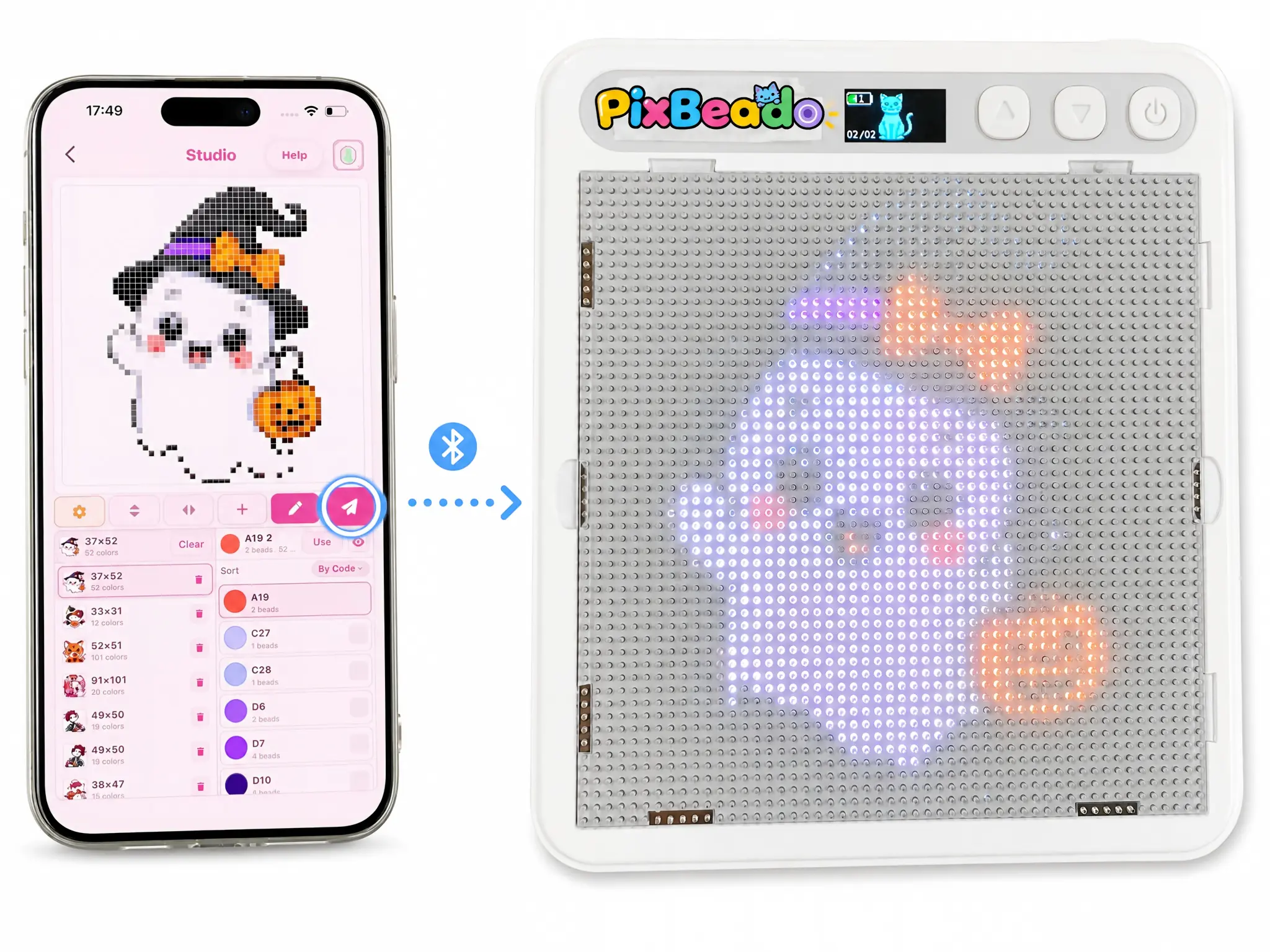
07How does the PixBeado Smart Bead Board help me place the beads?
After the pattern is transferred, the PixBeado Smart Bead Board illuminates the positions where beads should be placed. You can follow the highlighted positions instead of repeatedly counting rows on a printed pattern.
Choose the active color group: The board displays the positions for the selected color.
Match the bead color: Select the corresponding bead color from your collection.
Fill the illuminated positions: Place one bead on each highlighted peg.
Move to the next color: Press the board control to switch to the next color group when supported by your board model.
Repeat: Continue until every color group in the pattern is complete.
This color-guided workflow helps address common frustrations in traditional fuse bead art, including losing your place among similar colors or rows.
One color at a time: Follow the illuminated positions, place the matching beads, and move through the pattern in organized color groups.

08How do I stop the beads from moving if I need to pause?
The PixBeado Smart Bead Board uses 1.9mm-long pegs to help hold the beads in position. If you need to stop halfway, place the included transparent cover over the board to help protect the unfinished design. When you are ready, remove the cover and continue creating.
09Can I create a photo design larger than one board?
Yes, when supported by the selected configuration. The PixBeado (douyishe) APP can divide a large design into four sections, which can be created with the four pegboards included with the product.
- Upload a large photo to the PixBeado (douyishe) APP.
- Divide the design into four sections.
- Select each section in the APP.
- Complete the bead placement on each board.
- Connect the compatible boards according to the product instructions.
10Can I use Perler, Hama, Artkal, or NABBI beads with PixBeado?
Yes, when the bead size matches the PixBeado board system. PixBeado Smart Bead Boards can be compatible with mainstream fuse bead products such as Perler, Hama, Artkal, and NABBI.
- Use 2.6mm beads with the 2.6mm PixBeado system.
- Use 5mm beads with the 5mm PixBeado system.
- Test a small section first if you are using a different brand or material.
- Follow the ironing instructions for the beads you use.
11Can I use a household iron to finish the fuse bead artwork?
Yes. You can use a household iron to fuse the beads on the pegboard. PixBeado pegboards are made with aviation-grade material that can withstand temperatures up to 180°C.
- Use suitable ironing paper.
- Follow the recommended temperature and contact time for the beads you use.
- Keep the iron moving.
- Allow the artwork to cool before handling it.
- Do not iron the electronic Smart Bead Board body or electronic components.
- Heating should be performed by an adult or with appropriate adult supervision.

What problems does PixBeado solve for fuse bead beginners?
Customers often find it difficult to prepare a pattern manually, count every position, distinguish similar colors, and remember where they stopped. PixBeado combines the PixBeado (douyishe) APP with LED-guided hands-on crafting to address these questions in one workflow.
Photo-to-pattern workflow
Convert a favorite photo into a grid-based fuse bead design with the PixBeado (douyishe) APP.
LED-guided placement
Follow illuminated positions instead of repeatedly counting rows on a printed pattern.
Two bead-size systems
Choose 5mm for accessible projects or 2.6mm for more detailed photo artwork.
Hands-on creative result
The APP prepares the design, but every bead is still placed by you. The final artwork remains a handmade creation.
Frequently Asked Questions
What is the PixBeado (douyishe) APP used for?
The PixBeado (douyishe) APP is used to select, create, edit, and transfer patterns to the PixBeado Smart Bead Board. It can also convert a selected photo into a bead-ready pixel art pattern.
Can I turn my own photo into fuse bead pixel art?
Yes. Upload a selected photo to the PixBeado (douyishe) APP, review the generated pattern, and transfer it to the PixBeado Smart Bead Board.
Will the finished design look exactly like my original photo?
Not necessarily. The photo is simplified into a fixed grid and limited bead palette. A clear subject, good contrast, and a suitable board size help preserve recognizable features.
Which photo is best for conversion?
Choose a clear, well-lit photo with one main subject, a simple background, and strong contrast. Avoid blurry, very dark, or heavily crowded images.
Can I change the bead color codes after the photo is converted?
Yes. Review the generated pattern and adjust the bead color codes before transferring the design to the PixBeado Smart Bead Board.
Should I choose the 5mm or 2.6mm PixBeado system?
Choose 5mm for beginners, families, and bold designs. Choose 2.6mm for detailed portraits, pet photos, and smaller visual features.
Can I use 5mm beads on a 2.6mm board?
No. The 5mm and 2.6mm systems are separate. Use compatible beads with the matching PixBeado board series.
Can I use Perler, Hama, Artkal, or NABBI beads?
Yes, when the bead size matches the board system. Use 2.6mm beads with the 2.6mm system and 5mm beads with the 5mm system.
Do I need to keep my phone connected while creating?
No. After the pattern has been transferred to the Smart Bead Board via Bluetooth, you can continue creating without keeping your phone beside the board.
How do I stop the beads from moving before I finish?
The 1.9mm-long pegs help hold the beads in position. If you pause, place the included transparent cover over the board and continue later.
Can I create a design larger than one board?
Yes, when supported by the selected configuration. The PixBeado (douyishe) APP can divide a large design into four sections for the four included pegboards.
Can I use a household iron to finish the artwork?
Yes. PixBeado pegboards are made with aviation-grade material that can withstand temperatures up to 180°C. Follow the bead manufacturer’s ironing instructions and use adult supervision.
What should I do if the PixBeado (douyishe) APP cannot connect to my board?
Make sure the board is powered on, Bluetooth is enabled, the board is close to the phone, and the correct board model is selected. If the issue continues, contact PixBeado support at service@pixbeado.com.
Do I need an account to use the PixBeado (douyishe) APP?
Check the current APP listing and product instructions for the latest account requirements, because APP features and requirements may change with updates.
Turn a Favorite Photo into Handmade Pixel Art
Choose a photo, convert it with the PixBeado (douyishe) APP, transfer the pattern to the PixBeado Smart Bead Board, and follow the illuminated positions to create your own fuse bead artwork.
Shop PixBeado Smart Bead Boards →Disclaimer: PixBeado is an independent brand and is not affiliated with, sponsored by, or endorsed by Perler, Hama, Artkal, NABBI, or other third-party bead brands. Compatibility depends on the specific bead type and size.